
If you’re running more than a handful of Azure resources, “Are we compliant?” quickly turns into a recurring operational question.
Azure Policy helps you answer that at scale by continuously evaluating resources against rules (policies) and surfacing a compliance view across subscriptions, resource groups, and individual resources.
This post focuses on how Azure Policy evaluates compliance, and how you can check compliance results using the Portal and command-line tools.
Azure Policy in one picture
Azure Policy has a simple model:
- Definition: the rule (what to check)
- Assignment: where to apply it (the scope)
- Initiative: a bundle of definitions (a policy set)
- Effect: what happens when a resource matches the rule (audit, deny, deploy, modify)
Once assigned, Azure Policy evaluates resources in the background and records compliance state.
Key building blocks (in plain language)
1) Policy definitions
A policy definition is the “if this, then that” logic.
Examples:
- Audit resources missing a required tag
- Deny creation of public IPs in a restricted subscription
- Enforce diagnostic settings on supported resources
The definition is written in JSON, there are many built-in definitions, and you can create custom ones. Below are the main parts of a definition:
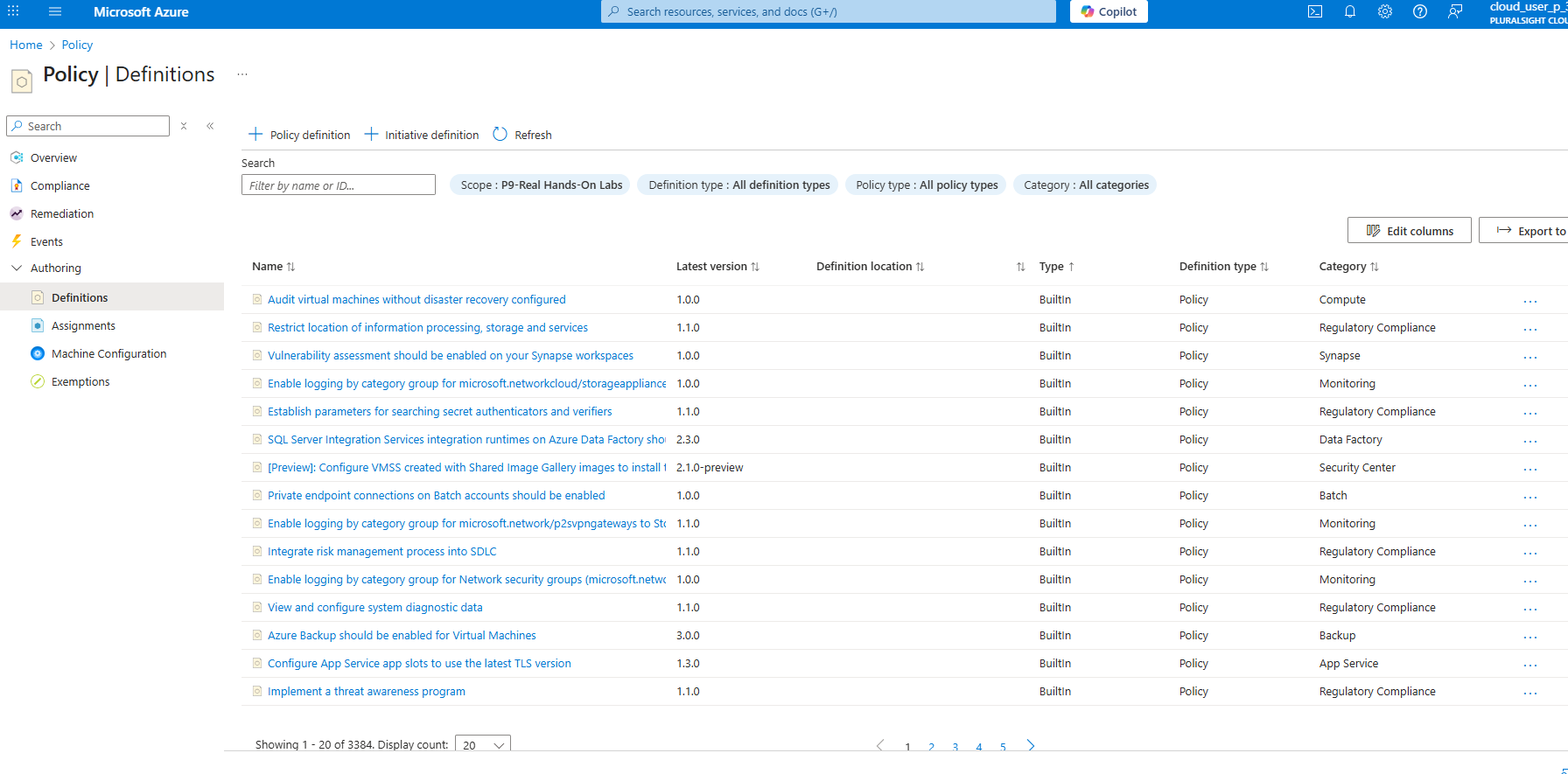
The built-in policy definition “Audit resource location matches resource group location” JSON example:
1 | { |
2) Policy assignments
An assignment applies a definition (or initiative) to a scope:
- Management group
- Subscription
- Resource group
- Individual resource (less common)
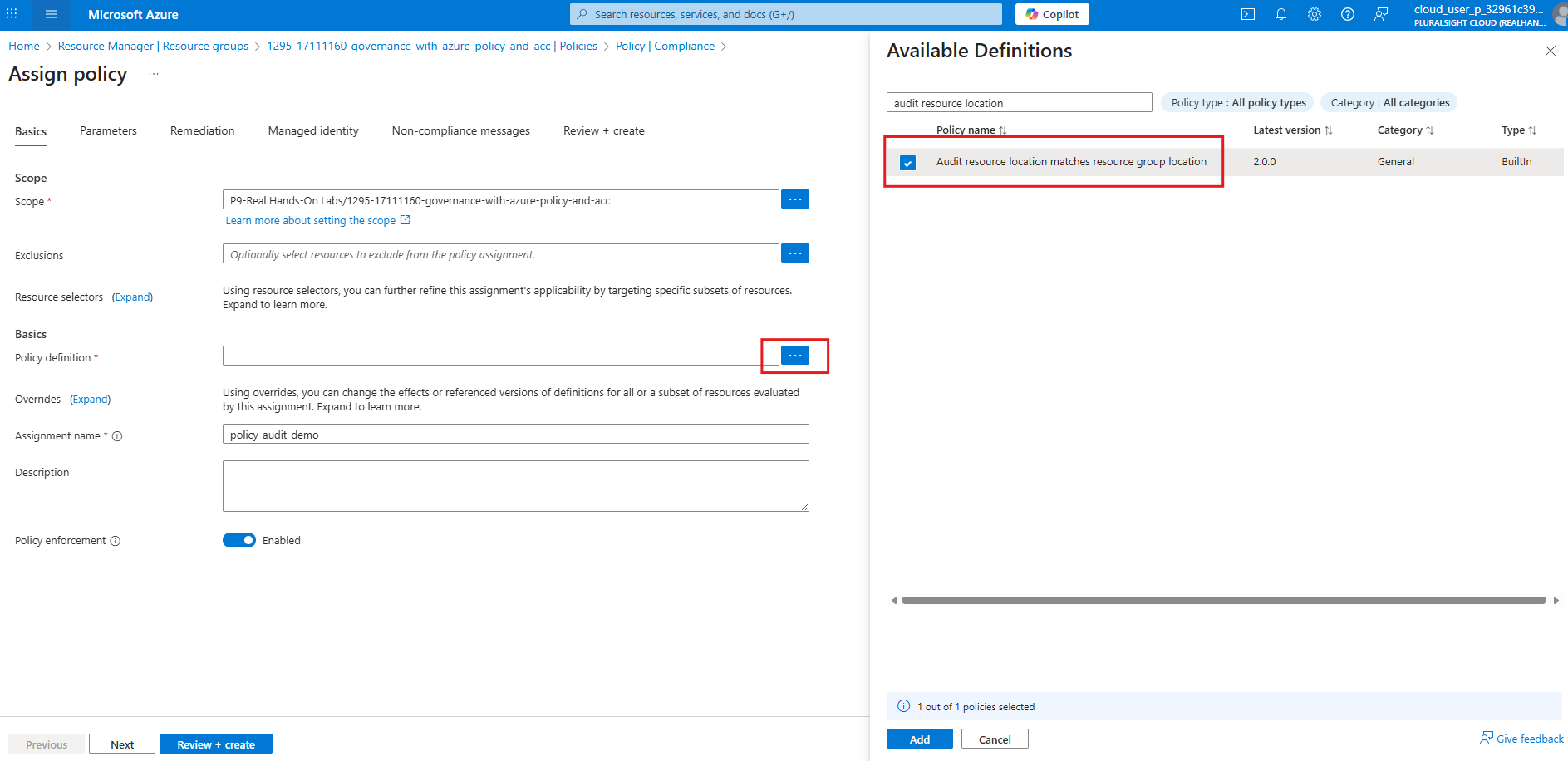
Assignments can also include parameters (e.g., required tag name) and exclusions. Below screenshot shows creating an assignment policy to a resource group for audit in the Portal:
3) Initiatives (policy sets)
Initiatives group multiple definitions into one “goal”.
This is useful for things like:
- Security baseline
- Tagging standards
- Regulatory compliance bundles
4) Effects (what Azure does)
Common effects you’ll run into:
Audit: record non-compliance (does not block)Deny: block non-compliant create/update operationsDeployIfNotExists: deploy a missing config when possibleModify: change a resource during create/update to match the rule
5) Remediation
For DeployIfNotExists and Modify, you can often remediate existing resources by creating a remediation task (Portal) or running remediation tooling.
How compliance evaluation works
Azure Policy continuously evaluates resources and records results as policy states.
Two practical notes:
- Evaluation is not always instant. There can be a delay between deploying/assigning a policy and seeing updated compliance.
- Compliance is per assignment. The same definition assigned at two scopes is evaluated independently for each assignment.
How to evaluate compliance (Portal)
- Go to Azure Portal → Policy
- Open Compliance
- Filter by scope (management group / subscription / resource group)
- Drill down:
- Initiative → policy definition → resource list
- View non-compliant resources and the reason
This is usually the fastest way to understand what’s failing and why. We have assigned a built-in policy which audits the resource location must match the resource group location. It is called “Audit resource location matches resource group location”. Let’s create a Virtual Machine in a different location than the resource group to see how compliance is evaluated.
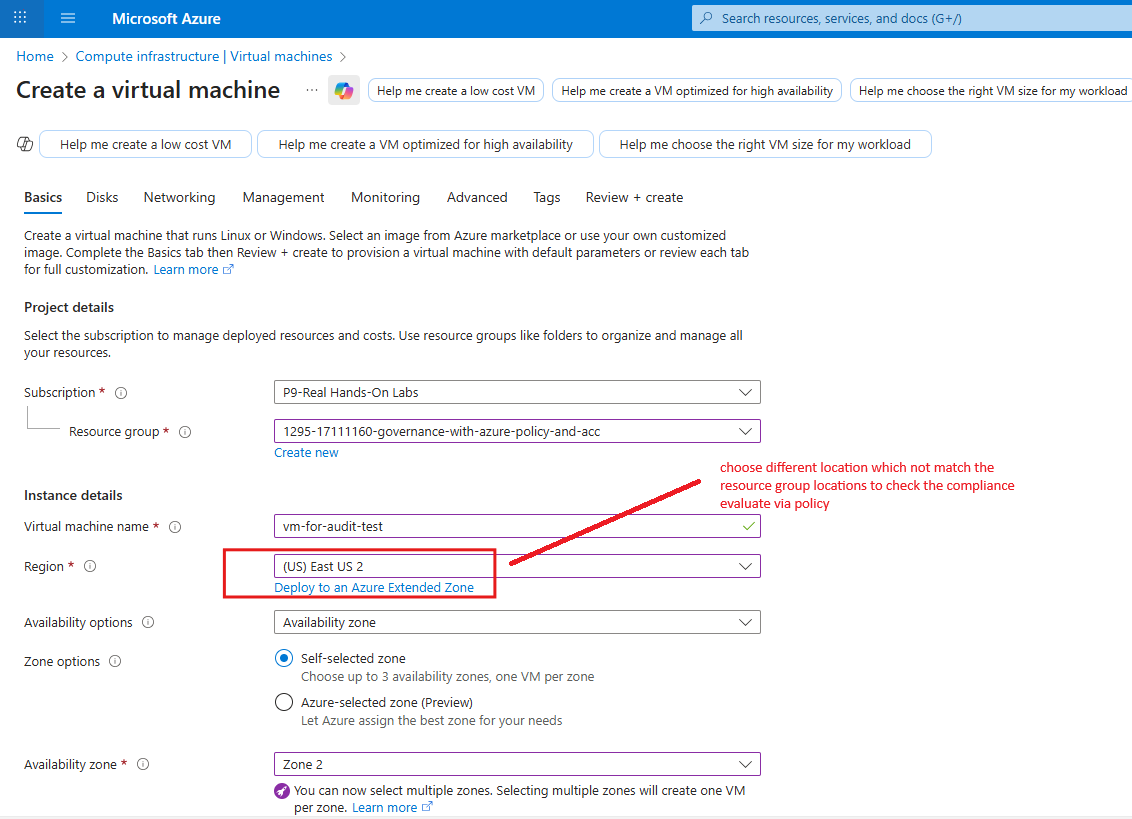
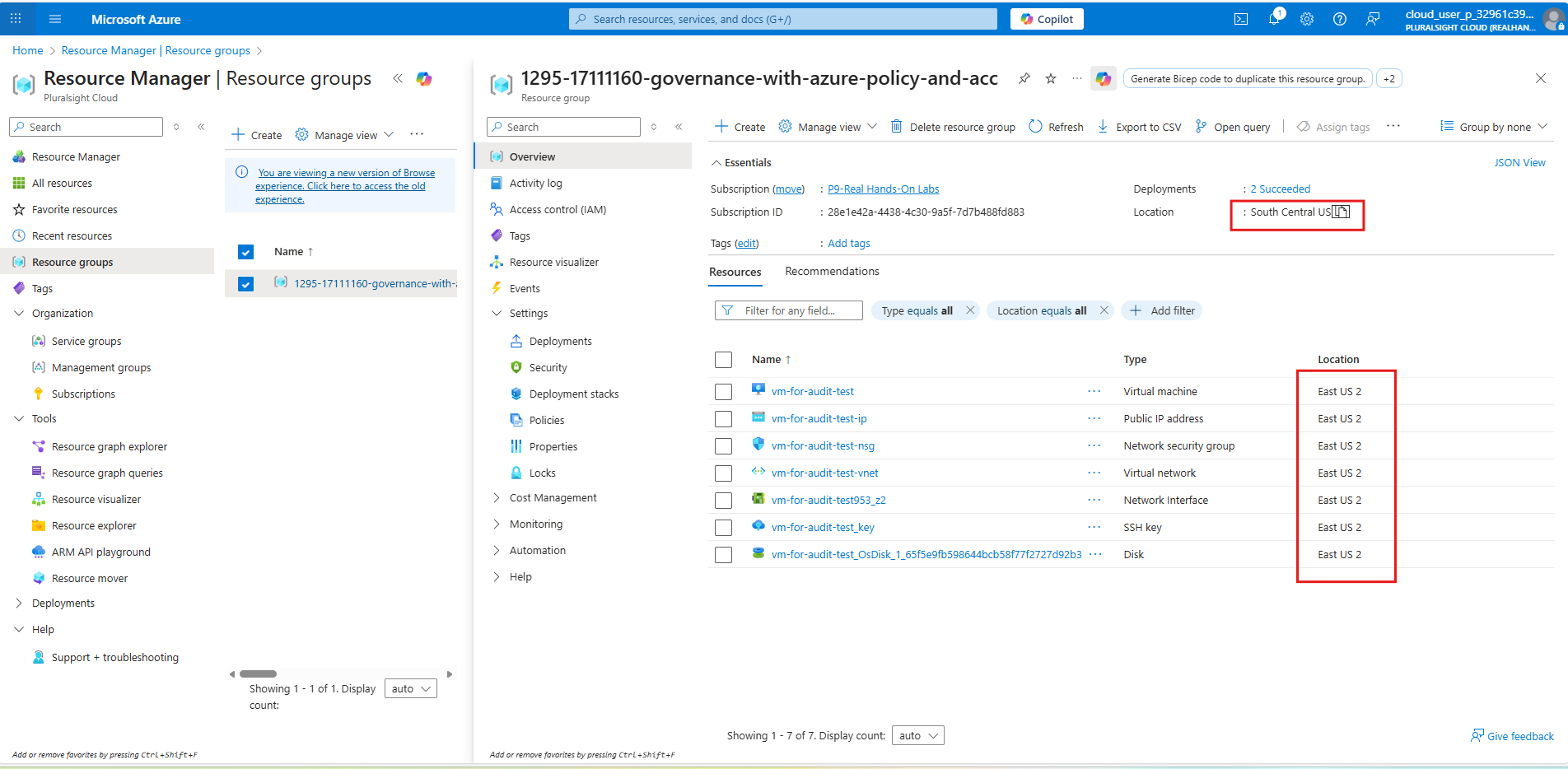
In above screenshot, we are creating a Virtual Machine in “East US” location while the resource group is in “South Central US” location.
After several minutes, navigate to the Compliance section in Azure Policy to see the compliance state.
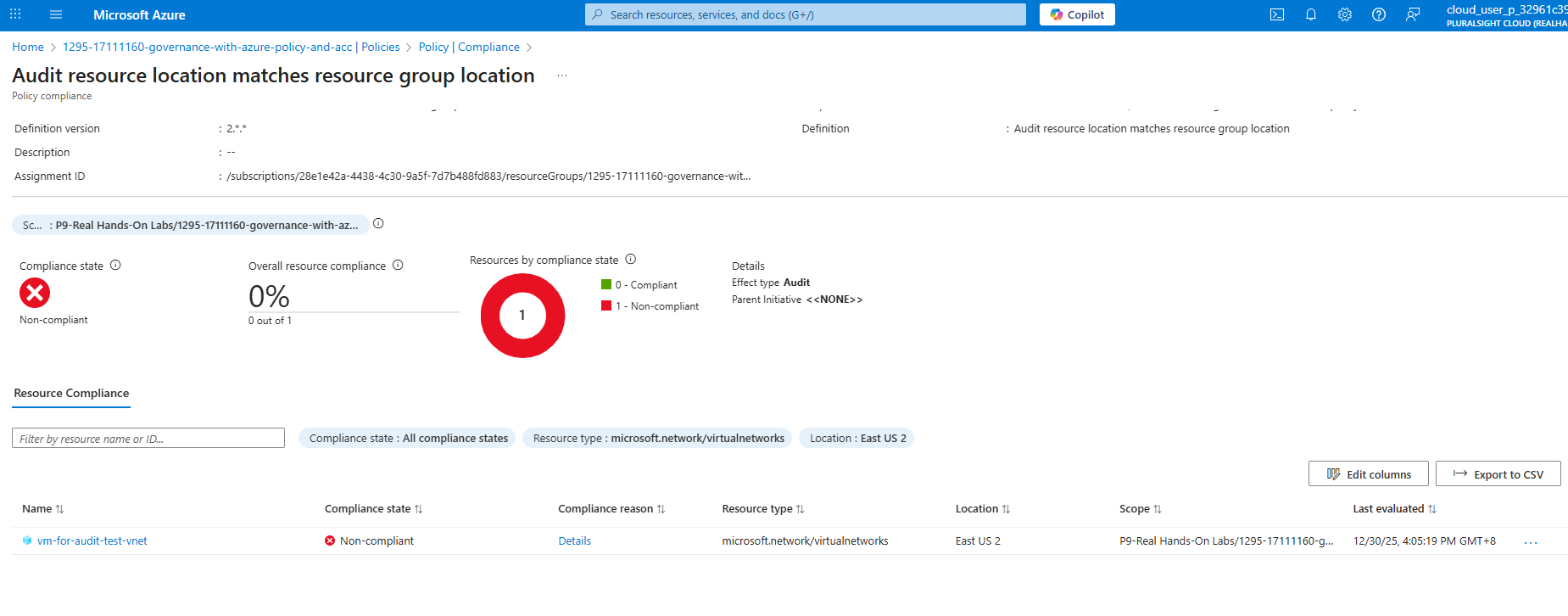
In above screenshot, you can see the compliance state for the assigned policy. It shows “Non-compliant” because the Virtual Machine was created in a different location than the resource group.
How to evaluate compliance (Azure CLI)
If you want to automate reporting or query results in scripts, use policy state commands.
For example, to list all policy assignment to a resource group and check the non-compliant resources:
List all policy assignments at a resource group scope:
1 | az policy assignment list --resource-group <RESOURCE_GROUP_NAME> |
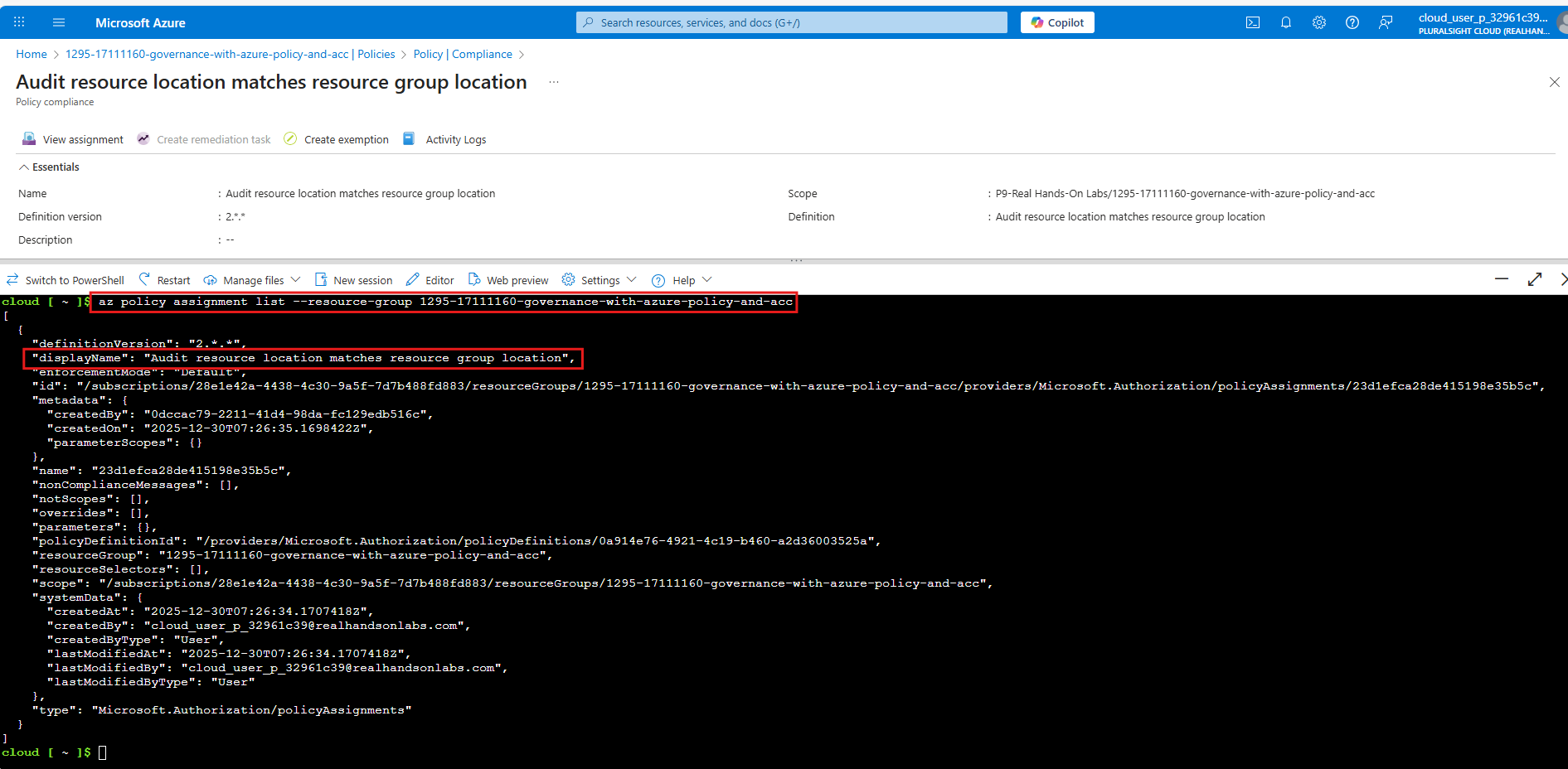
Using below command to list compliance results (policy states) for a resource group:
1 | az policy state list --resource-group <RESOURCE_GROUP_NAME> --filter "complianceState eq 'NonCompliant'" |
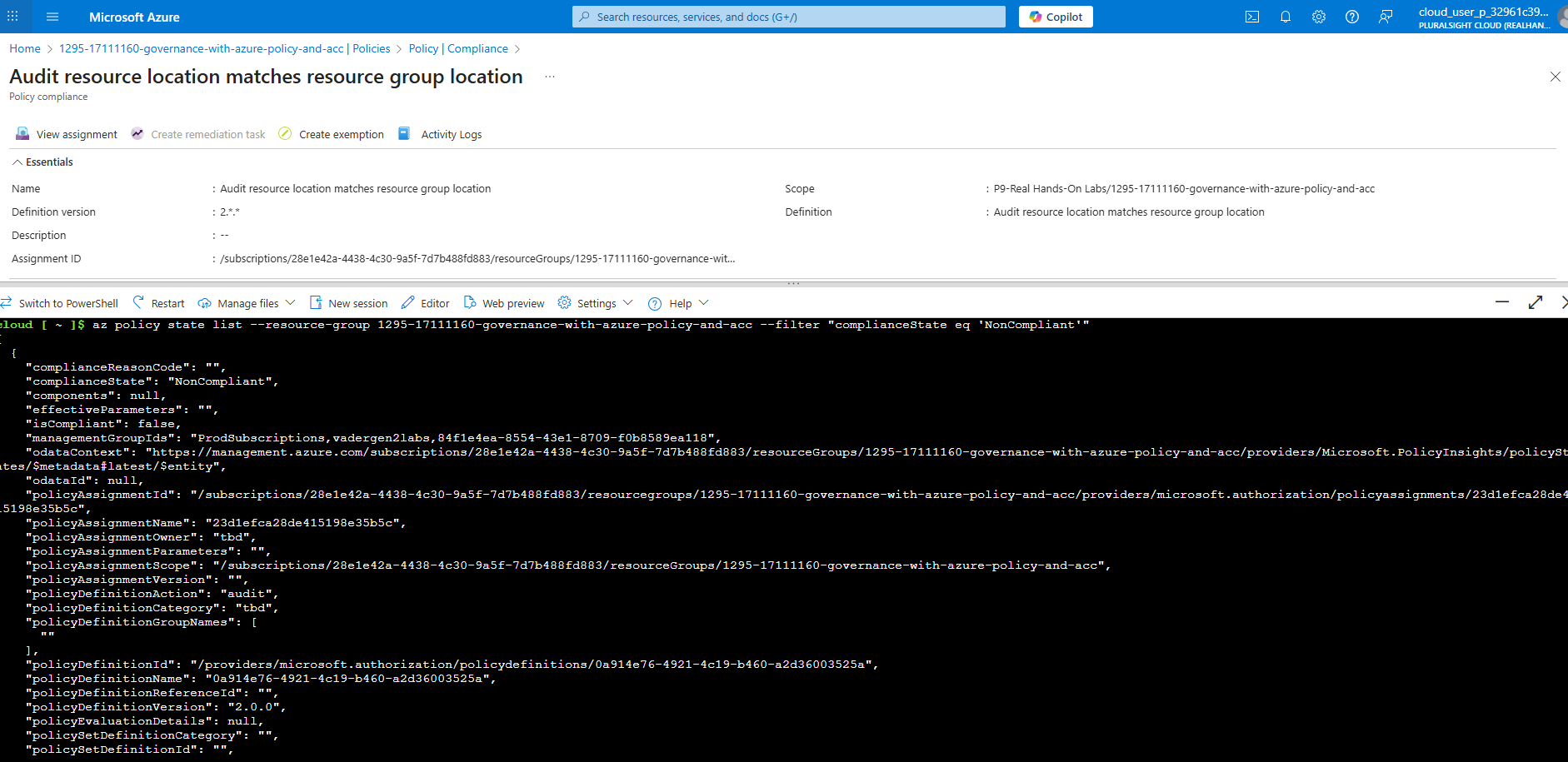
You can also List policy assignments at a scope:
1 | az policy assignment list --scope /subscriptions/<SUBSCRIPTION_ID> |
Query compliance results (policy states) for a subscription:
1 | az policy state list --subscription <SUBSCRIPTION_ID> |
Filter to only non-compliant states:
1 | az policy state list --subscription <SUBSCRIPTION_ID> --filter "complianceState eq 'NonCompliant'" |
Tip: the raw output can be large; consider adding --query to project specific fields (e.g., resourceId, policyAssignmentId, policyDefinitionId).
Common use cases (real-world patterns)
- Resource tagging: enforce required tags for chargeback, ownership, environment
- Security guardrails: deny risky configurations; audit drift over time
- Regulatory compliance: track compliance posture against published baselines
- Cost control: restrict SKUs/regions; limit expensive resource types
- Operational consistency: ensure diagnostics, logging, or naming conventions
Why Azure Policy is worth it
- Automated governance: moves compliance from spreadsheets to enforcement and evidence
- Scalable: apply and report across large estates via management groups
- Flexible: built-in definitions + custom policies for your org’s standards
- Integrates well: Portal, CLI, PowerShell, and REST APIs for automation
Summary
Azure Policy is a critical tool for any organization looking to enforce governance, enhance security, optimize costs, and ensure compliance within their Azure environment.
Evaluating resource compliance with Azure Policy is straightforward once you understand the building blocks: definitions, assignments, initiatives, effects, and remediation. By leveraging the Portal or command-line tools, you can easily monitor and report on compliance across your Azure environment.